> For clean Markdown of any page, append .md to the page URL.
> For a complete documentation index, see https://docs.tester.army/get-started/llms.txt.
> For full documentation content, see https://docs.tester.army/get-started/llms-full.txt.

# Quick Start

<iframe src="https://www.youtube.com/embed/wcGAw8ABD0g" title="TesterArmy Quick Start" allow="accelerometer; autoplay; clipboard-write; encrypted-media; gyroscope; picture-in-picture" allowFullScreen />

## 1. Create an account

Sign up at [tester.army](https://tester.army/sign-in).

## 2. Create a project

Click **New Project** in the dashboard sidebar. Enter your app name and target URL (e.g., `https://staging.myapp.com`). Click **Create**.
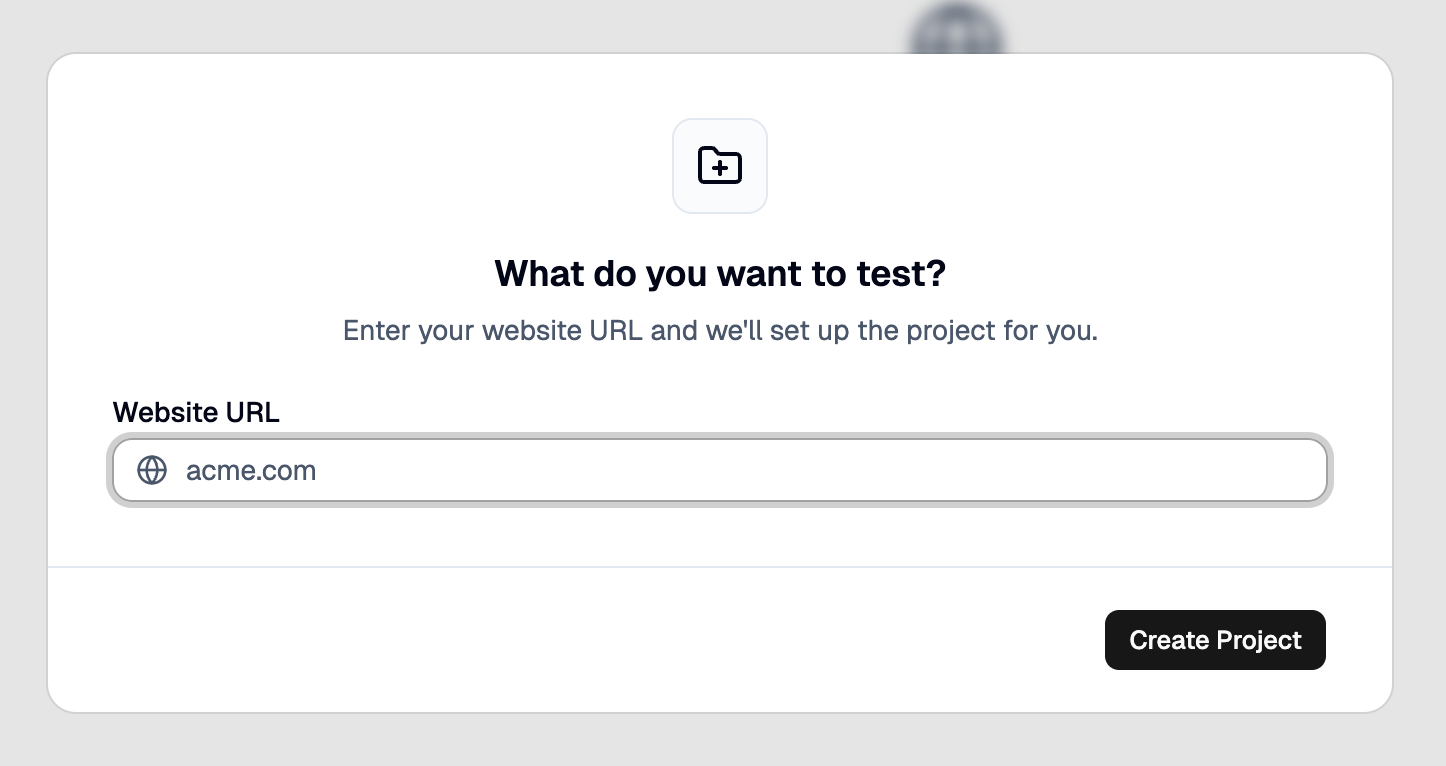
![Creating a new project](https://files.buildwithfern.com/testerarmy.docs.buildwithfern.com/1fa35046f7f9b91d9b210bb58359fa92e026cb05530faa8595142cafa4ebb692/docs/assets/docs/create-new-project.png)

## 3. Create a test

Click on create a new test and type-in your prompt. This will generate a test plan that you can tweak. After approving the plan, click **Run**.
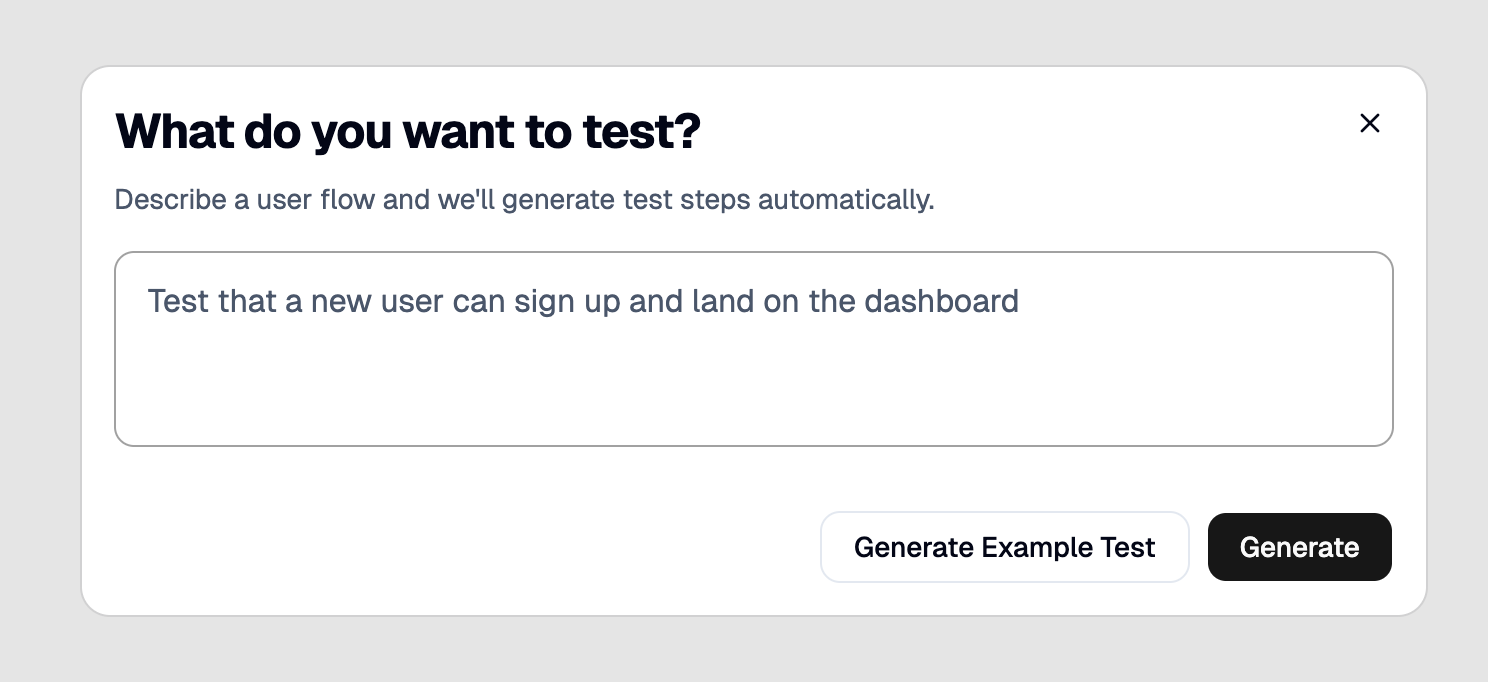
![Creating a new test](https://files.buildwithfern.com/testerarmy.docs.buildwithfern.com/a556b1a080efabf2d7f577c877625c41651fb6d060be752c0ab464cdbb129c65/docs/assets/docs/create-new-test.png)

This will generate a step-by-step test plan that you can tweak before running:
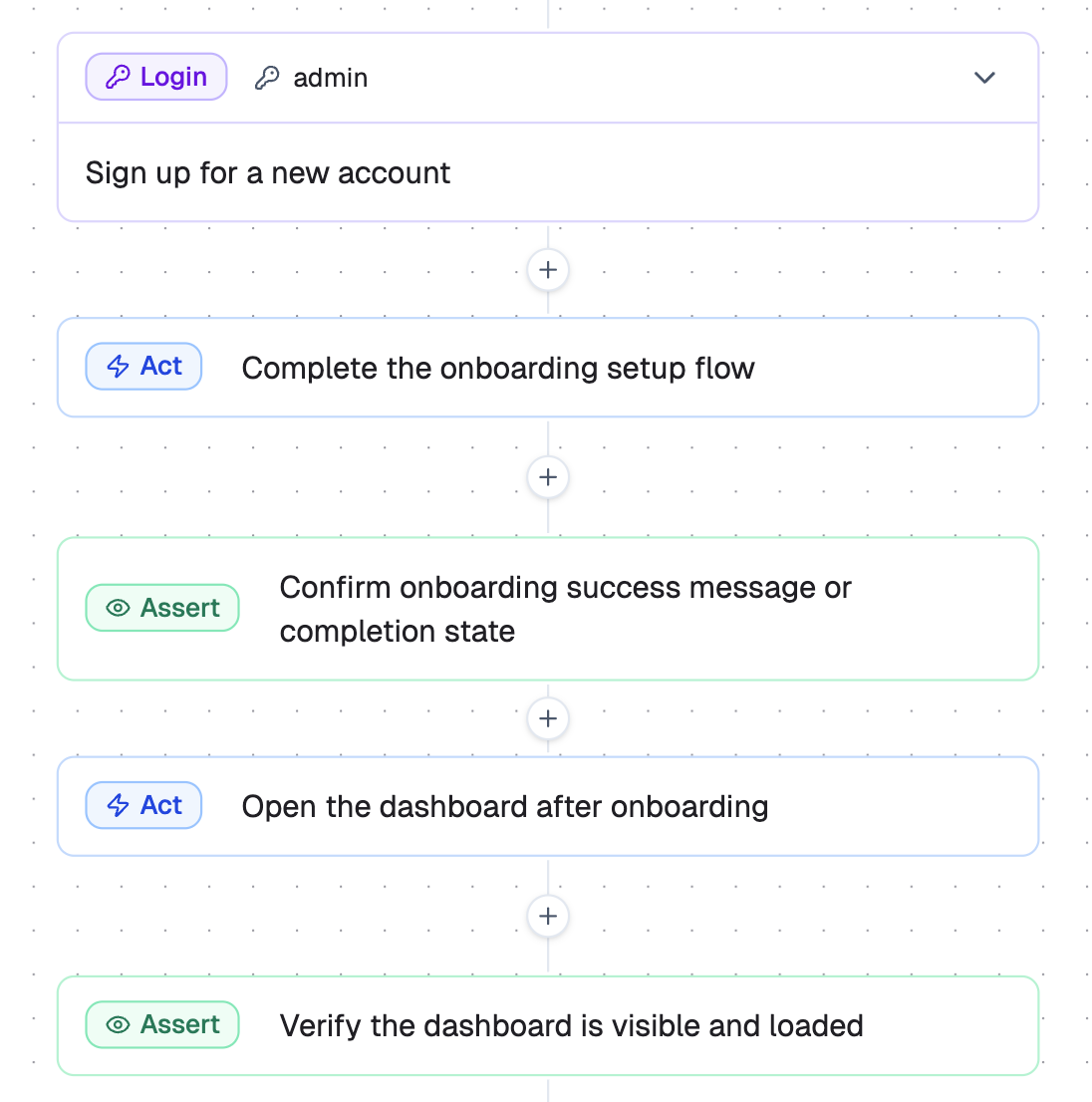
![TesterArmy step editor](https://files.buildwithfern.com/testerarmy.docs.buildwithfern.com/a7f104719ab1da1d171821c15cf00d4646b32ae51fce481da2b15625fb4046cd/docs/assets/docs/step-definition.png)

After reviewing the steps, click **Run**.
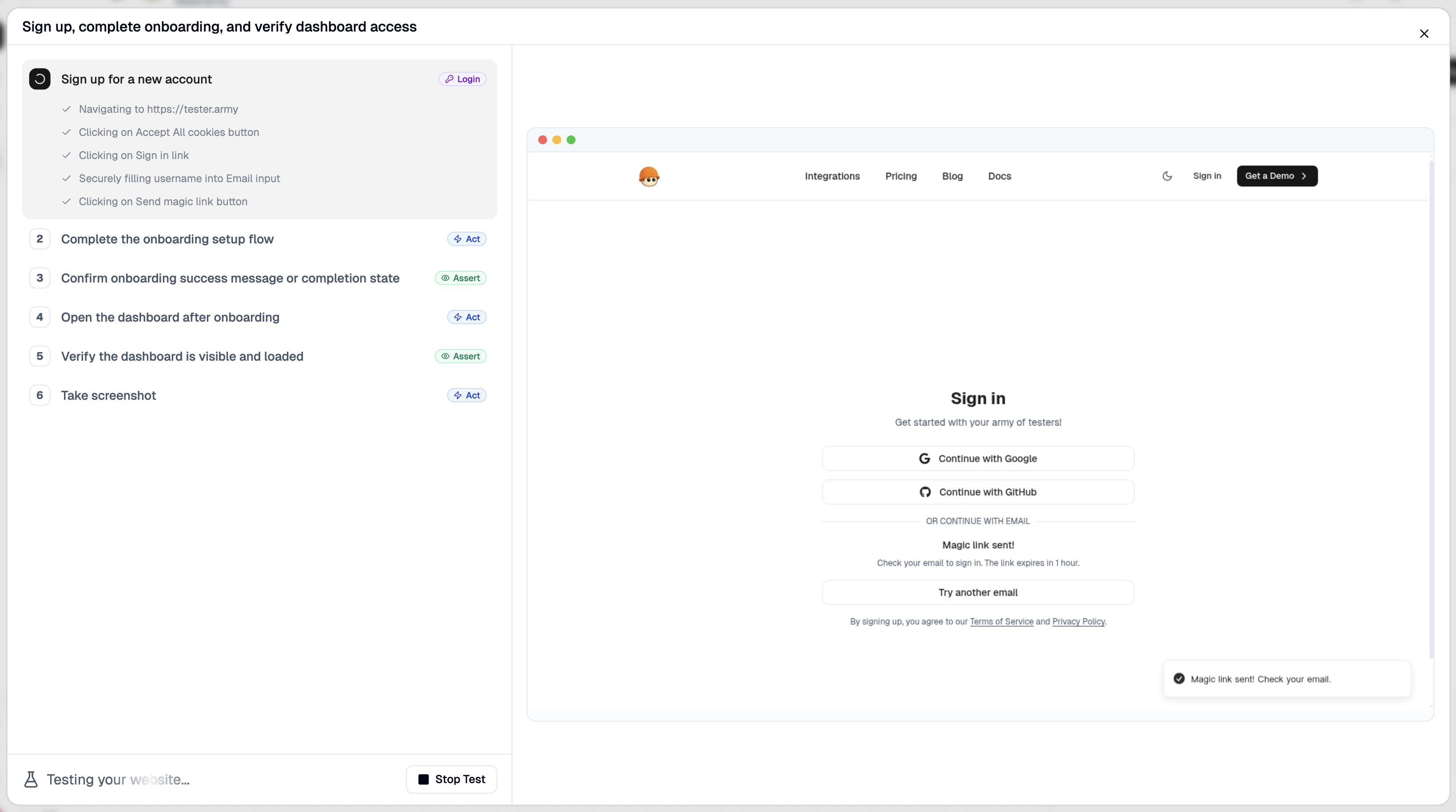
![TesterArmy test run](https://files.buildwithfern.com/testerarmy.docs.buildwithfern.com/d4997c336dfdbdb4e4930d1db588b9d6a2bfd9a29dec75d1bfa337686ff72473/docs/assets/docs/test-run.png)

This will open a cloud based browser and our agent will execute the steps and give you feedback if something goes wrong.

<b>
  Congrats! You successfully created and executed your very first test!
</b>

Testing is all about consistency, you should set up [Production Monitoring](/run/production-monitoring) or [PR Testing](/run/pull-request-testing) to guarantee everything keeps working.

## Next steps

<CardGroup cols={2}>
  <Card title="PR Testing" icon="fa-duotone fa-code-pull-request" href="/run/pull-request-testing">
    Automatically test every pull request on deploy.
  </Card>

  <Card title="Production Monitoring" icon="fa-duotone fa-clock-rotate-left" href="/run/production-monitoring">
    Monitor your production with recurring test runs.
  </Card>
</CardGroup>