Setup
- Connect GitHub and select the repository for this TesterArmy project.
- Open Integrations → Vercel.
- Click Connect Vercel. This opens the TesterArmy Vercel integration page on Vercel.
- Install the integration for the personal account or Vercel team that owns the target project.
- Back in TesterArmy, refresh the Vercel project list and select the Vercel project that matches this repository.
- Optional: in Integrations → GitHub, choose the PR target branch to allow if you only want automatic runs for one base branch.
deployment_status events, then verifies that the deployment belongs to the selected Vercel project before any tests are queued.
Why selection is required
One GitHub repository can be connected to multiple Vercel projects. TesterArmy needs one explicit choice so it can safely ignore deployments from the wrong Vercel project instead of running tests against the wrong preview. Only deployments from the selected Vercel project will trigger tests. If a GitHub target branch is configured, the deployment must also belong to a PR targeting that base branch.Deployment protection bypass
If Vercel deployment protection blocks the preview URL, configure a Protection Bypass for Automation token after selecting the Vercel project. See Vercel Preview Deployments for setup and troubleshooting.Status states
- Connected, no project selected - connect succeeded, but you still need to choose the Vercel project.
- Active - the selected Vercel project is accessible and used for verification.
- Requires reconnect - Vercel auth expired or was revoked.
- Missing access - the selected Vercel project is no longer accessible to the connected Vercel account.
Troubleshooting
No PR comment appears
- GitHub App not connected - verify the installation under Integrations → GitHub.
- Permissions - the GitHub App needs Pull requests: Read & Write.
- Vercel not selected - connect Vercel and choose the single Vercel project this project should test.
- Wrong Vercel project - if the repo is linked to multiple Vercel projects, only the selected one is allowed to trigger tests.
TesterArmy bot doesn’t comment even after connecting everything
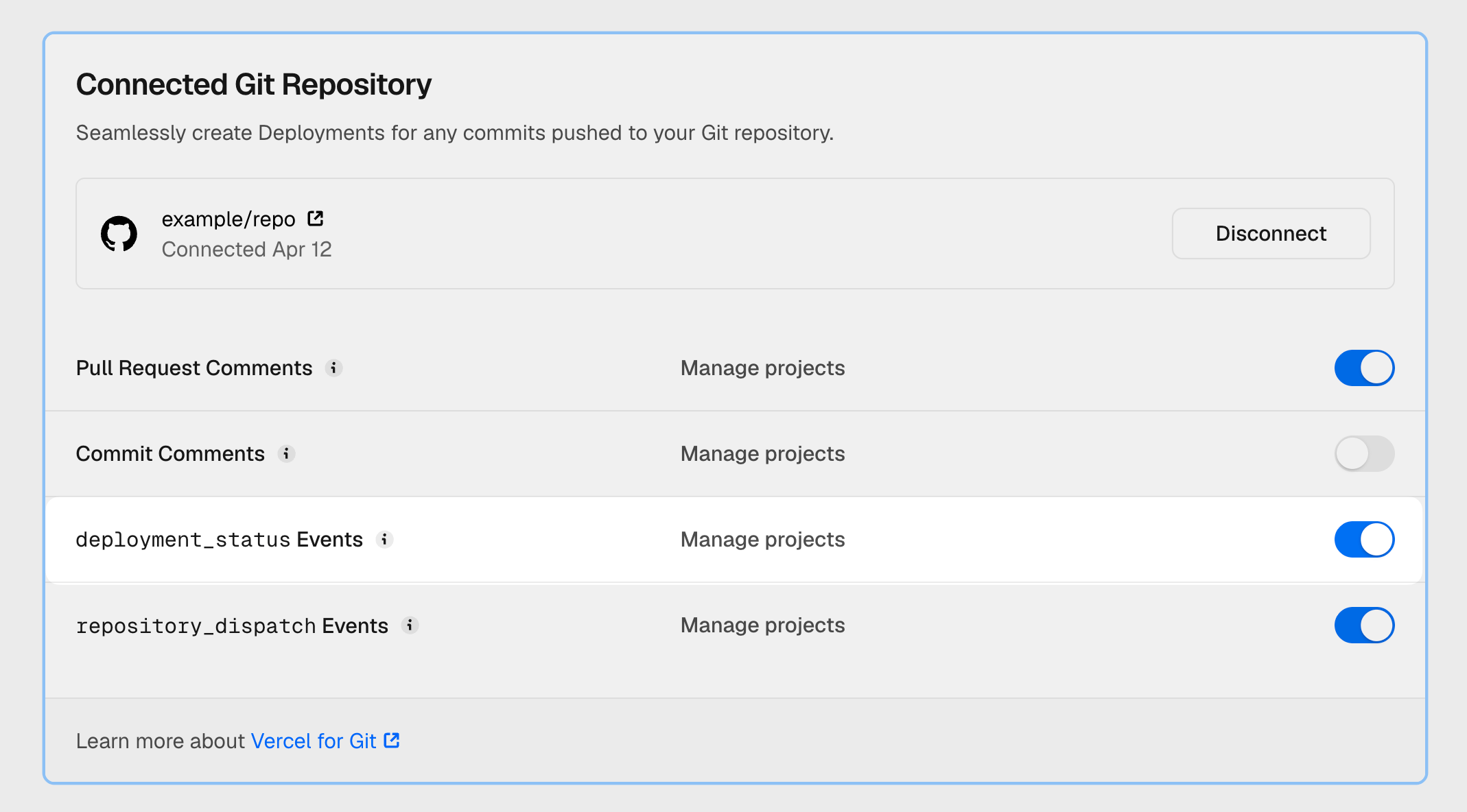
If you’ve connected GitHub and Vercel but still don’t see the TesterArmy bot on your pull requests, check that Vercel is sendingdeployment_status events to GitHub. TesterArmy relies on these events to detect preview deployments, so if they’re turned off, no tests are queued and no comment appears.
In Vercel, open your project’s Settings → Git → Connected Git Repository and make sure deployment_status Events is enabled.